
In this article you will learn about how to change the default repository database from Derby to any other RDBMS of your choice(Recommended PostgreSQL,MySQL and Oracle)
Starting from Helical Insight 6.0, when Helical Insight application is installed on the end client server or any other system then by default repository database is set to Derby(with installer) and PostgreSQL(with docker). Derby is a light weight DB wherein the user role information as well as cache etc information is stored. Here, you have the flexibility to change from Derby to other more enterprise DB for better performance.
We are providing a step-by-step process to migrate from Derby to PostgreSQL:
Step 1: Install PostgreSQL separately. Create a db by the name of hiee in this database.
Step 2: Then open application-context.xml file. This file is present on the below path “C:\Program Files\Helical Insight\hi\apache-tomcat-11\webapps\hi-ee\WEB-INF\classes”
Make changes on the below code, change it from derby to DB of your choice (change driver, class etc) (line 8 to line 14)
<bean class="com.zaxxer.hikari.HikariDataSource" destroy-method="close" id="dataSource">
    <property name="username" value="hiuser"/>
    <property name="password" value=""/>
    <property name="driverClassName" value="org.apache.derby.jdbc.EmbeddedDriver"/>
    <property name="jdbcUrl" value="jdbc:derby:C:\Program Files\Helical Insight\hi\db\hiee;create=true"/>
    <property name="connectionTimeout" value="180000"/>
</bean>
also make change in the below (line 41)
<prop key="hibernate.dialect">org.hibernate.dialect.DerbyDialect</prop>
Step 3: We are providing the configuration for PostgreSQL. You should replace the corresponding Derby configurations mentioned above with the PostgreSQL configurations and then save the file.
<bean id="dataSource" class="com.zaxxer.hikari.HikariDataSource" destroy-method="close">
    <property name="username" value="postgres"/>
    <property name="password" value="helical"/>
    <property name="driverClassName" value="org.postgresql.Driver"/>
    <property name="jdbcUrl" value="jdbc:postgresql://localhost:5432/hiee"/>
</bean>

<prop key="hibernate.dialect">org.hibernate.dialect.PostgreSQLDialect</prop>
Note: Replace the username, password, driver class, JDBC URL, and Hibernate dialect with the values corresponding to your target database, in a similar way, we can configure it for MySQL and Oracle as well.
Step 4: To whichever DB you are migrating please make sure that you are also storing that specific DB JDBC driver in the LIB folder as well. Path of LIB folder is “C:\Program Files\Helical Insight\hi\apache-tomcat-11\webapps\hi-ee\WEB-INF\lib”
Step 5: From Helical 6.0 onwards, we must also add the dialect configuration for the backend database in the file shown below
open “persistence.xml” from below path
…\hi\apache-tomcat-11\webapps\hi-ee\WEB-INF\classes\META-INF
You will see below configuration :
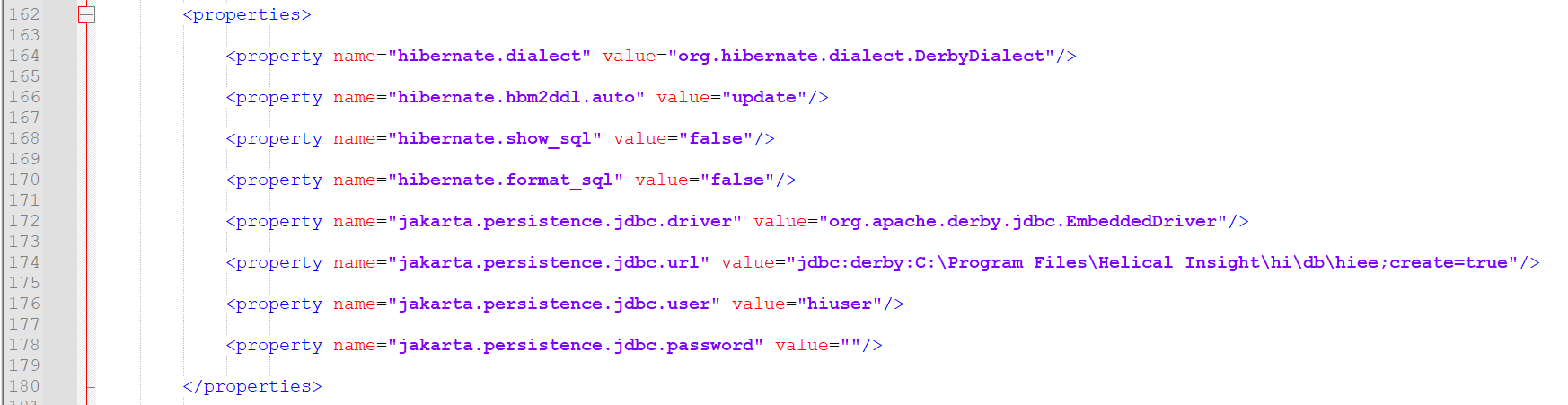
We have to change the configuration details based on the DB that we would like to use as the backend db. In this case since we are using Postgress, we are making changes. We have highlighted those places in yellow color where the changes are required.
<properties>
    <property name="hibernate.dialect" value="org.hibernate.dialect.PostgreSQLDialect";/>
    <property name="hibernate.hbm2ddl.auto" value="update"/>
    <property name="hibernate.show_sql" value="false"/>
    <property name="hibernate.format_sql" value="false"/>
    <property name="jakarta.persistence.jdbc.driver" value="org.postgresql.Driver"/>
    <property name="jakarta.persistence.jdbc.url" value="jdbc:postgresql://localhost:5432/hiee"/>
    <property name="jakarta.persistence.jdbc.user" value="postgres"/>
    <property name="jakarta.persistence.jdbc.password" value="helical"/>
</properties>
Step 6: Restart Helical Insight service
Note: For other supported databases, replace the configuration(mentioned in step 5 from persistence.xml) based on the respective database
For More Info, Contact us at demo@helicalinsight.com
